How to Use Simulator in ImageAssist: A Step-by-Step Guide
Sat Oct 17 2026
Simulator lets you show patients what a treatment could do. Describe the result in plain words, touch it up by hand, then compare, animate and save it. Here’s how it works.
Simulator helps you show patients what’s possible, right from the photos you already have in ImageAssist. You describe the result you want in plain words, and Simulator creates an AI preview from the patient’s photo. Then you can refine it by hand until it looks right.
Here’s how it works, step by step.
Step 1: Open Simulation
Log into the ImageAssist web app and open the Intelligence tab. Select Simulation.
Step 2: Choose a patient
Pick the patient you want to work with.
Step 3: Select a starting photo
Choose the photo you want to start from. Pick the one that best shows the area you’re discussing. For example, use a side view when you’re talking about the nose.
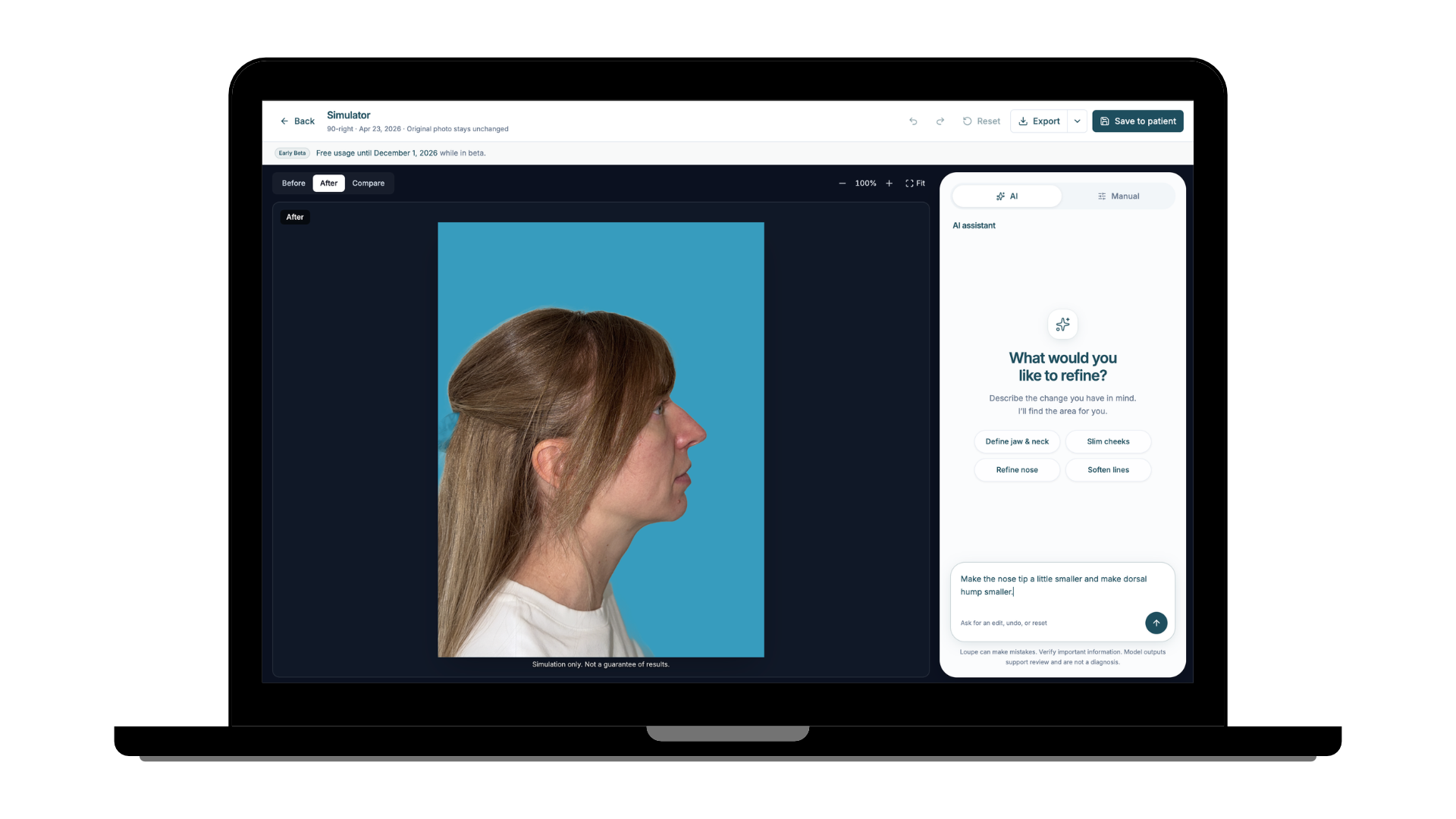
Step 4: Describe the result
You’ll see a prompt box. Describe the treatment you want to preview, and be specific about the area and the change. For example:
- “Remove redness”
- “Smooth dorsal hump” (for the nose)
The more descriptive you are about the procedure, the better your preview will match what you have in mind.
Step 5: Review and refine
Once the model runs, you have three choices:
- Accept the changes if the preview looks right.
- Keep going with natural language. Add more description to adjust the result.
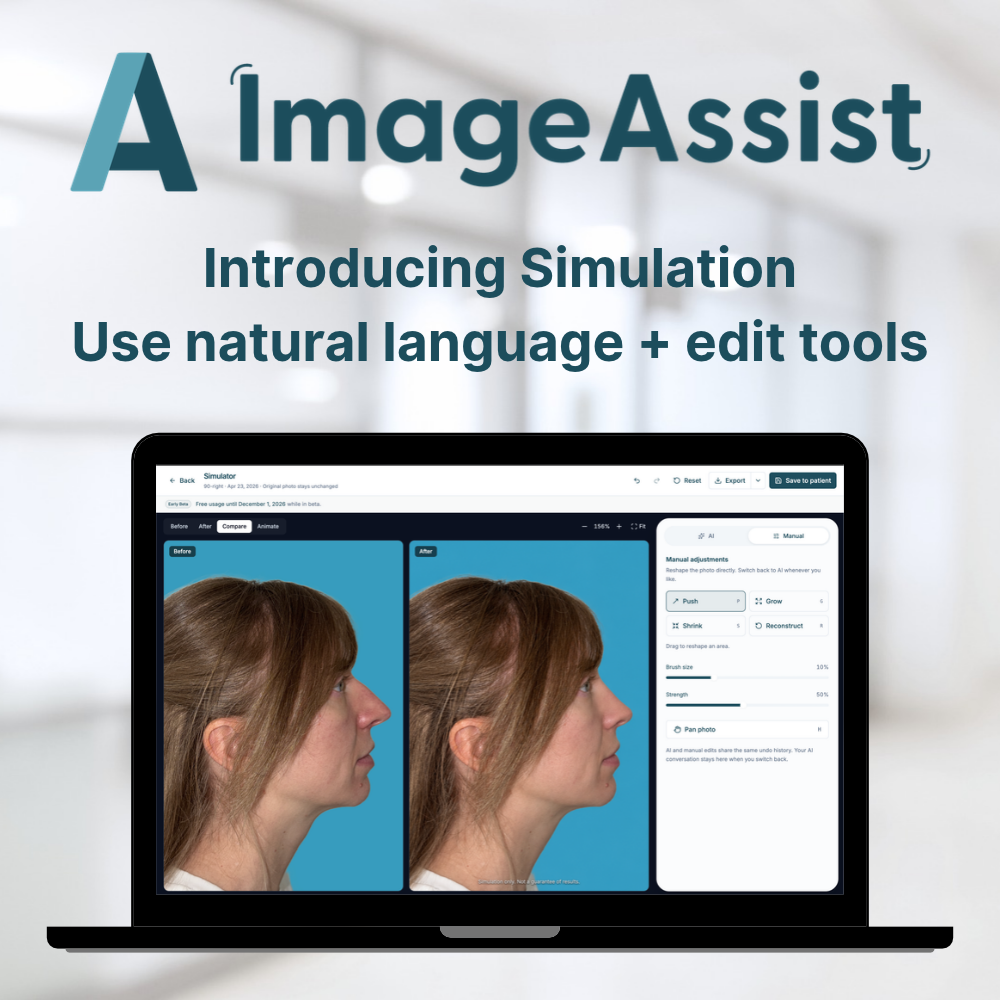
- Switch to Manual to make hands-on changes. Manual lets you push, grow or shrink specific areas. You can change the brush size and the strength to control how much each stroke does.
Step 6: Compare before and after
Select Compare to bring up a before-and-after view of the original photo and your simulation.
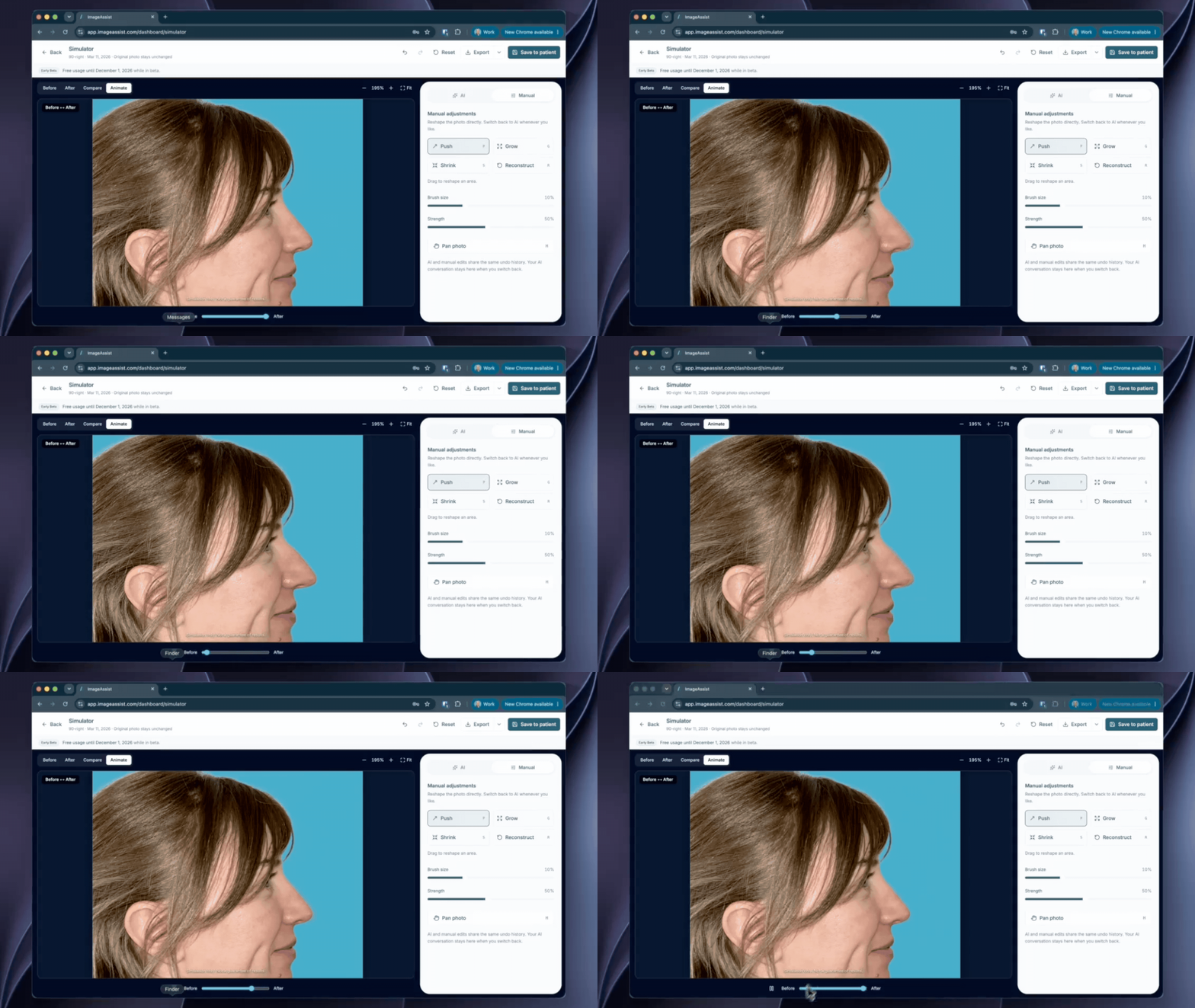
Step 7: Animate the change
Select the animation button to create an animated before-and-after. Use it to choose the visualization that works best for your patient conversation.
Step 8: Export or save
When you’re happy with the result, export the after photo, or save it to the patient’s profile so it’s there for the next visit.
A note on what Simulator shows
Simulator previews are illustrations to support the conversation with your patient. They are not predictions or guarantees of results, and they are not intended to diagnose or treat any condition.
Try it today
Simulator is part of the new AI tools in ImageAssist, along with Loupe™ and the Model Store. They’re free for ImageAssist customers through November 30 while we’re in beta. Log into the web app, open the Intelligence tab, and give it a try. Tell us what you think by replying to any of our emails or writing to us at [support email].